Once compression finishes, the Compressor can send the photos to FeedBunk AI directly. You never have to open a browser or drag files anywhere.
Step 1: Sign in
In the Upload to Feedbunk AI panel under the finished job, click Sign in. You get a window headed Sign in to Feedbunk AI, with the note Use the same email and password as feedbunkai.com.
There is no separate desktop account. If you do not have one yet, Create an account opens your browser to the registration page — see Create your account and sign in.
If you have two-factor authentication turned on, you will be asked for your 6-digit code here too.
Step 2: Enter the batch details
- Farm name — required
- Barn name — required
- Site name — optional
- Footage starts and Footage ends
For photos, the two dates are filled in for you — the app noted the earliest and latest capture times while it was compressing. For video they start empty. Fill them in if you know them, or leave them.
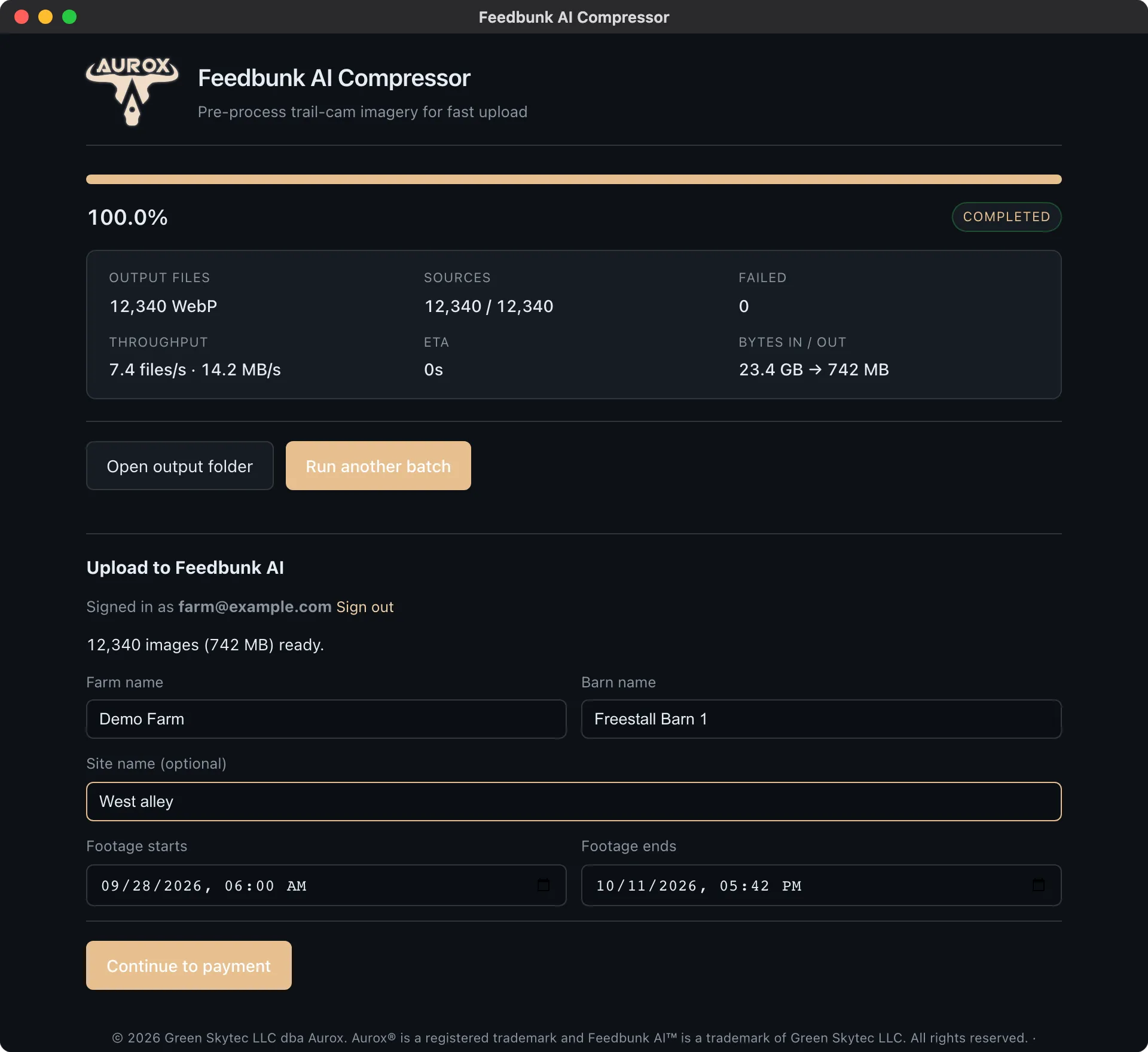
You do not need to correct these dates. They are for your reference only. We read the actual timestamp from every individual photo, so the report is built from those, not from what is typed here.
The capture interval check
FeedBunk AI needs footage taken every 5–15 seconds. If your photos were taken further apart than that, the panel shows These photos are too far apart. If you are uploading video, it shows Check your camera’s capture interval, because the interval cannot be read from a video file.
Tick the box to confirm. Continue to payment stays greyed out until you do.
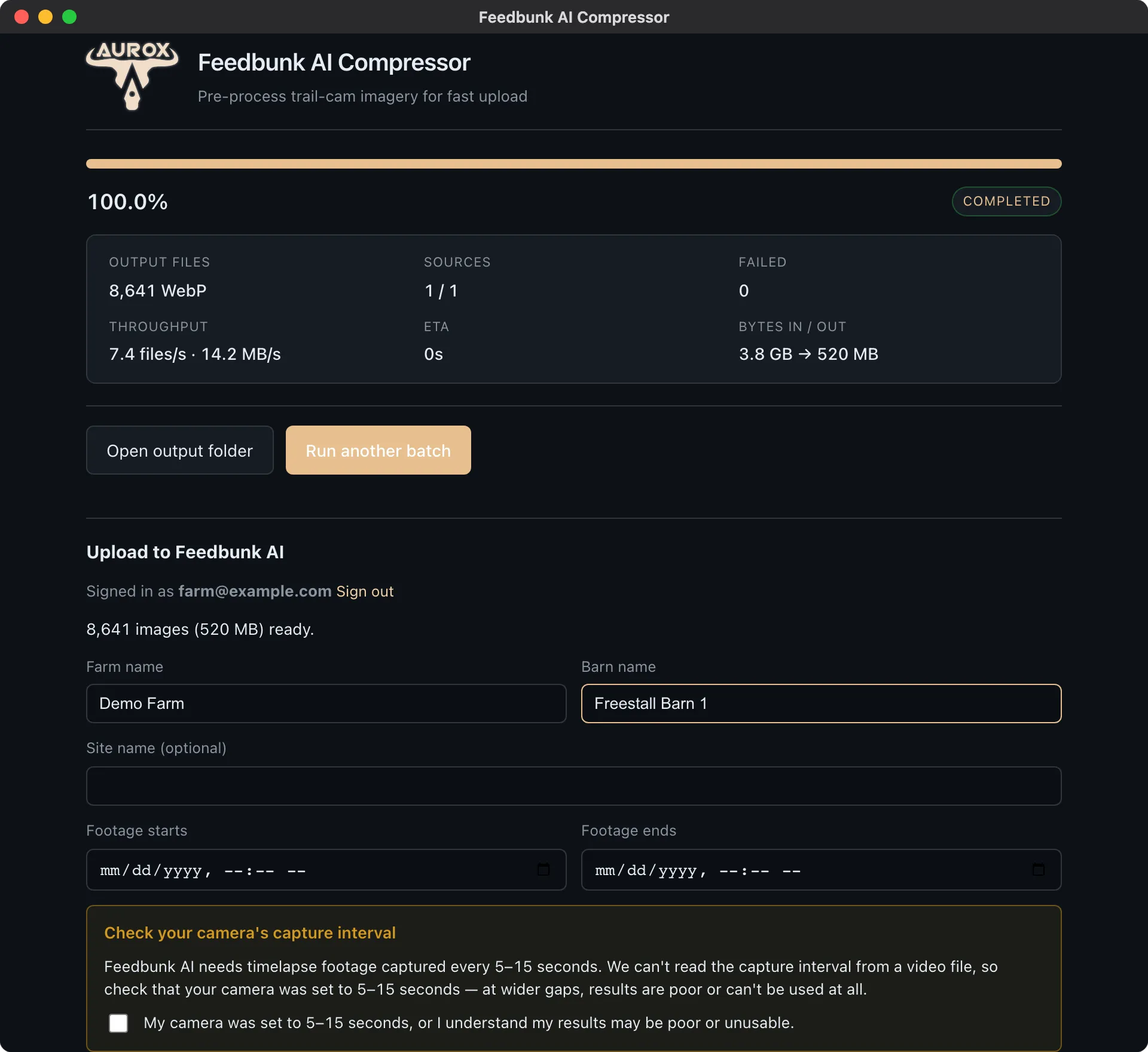
Then click Continue to payment.
Step 3: Confirm
You will see the batch summarised with an exact figure, for example:
19,847 images — $169.85 will be pre-authorized on VISA ••4242. You’re only charged for images actually processed.
This is a hold, not a charge. See How charges work for what that means.
- If you have a saved card, this is one click.
- If you need to enter a new card, or your bank asks for extra verification, the app hands off to your browser — already signed in — and comes back automatically when you are done.
- If your account is on the beta programme or covered by a subscription, the screen says No charge during the beta (or Covered by your subscription) instead of a price. Click Continue to upload.
If your sign-in has expired by this point, the app asks you to sign in again, then carries on.
Nothing uploads until you approve it here.
Step 4: Outline your bunk while it uploads
As soon as the batch is confirmed, the upload starts and a window appears asking you to mark the four corners of your feed bunk. This happens for video uploads too. It runs on top of the upload — it never blocks it, and you can skip it and do it later from the website.
Do it now if you can. It takes a minute and it is what tells us which strip of concrete to measure. See Outline your feed bunk.
Step 5: Let it upload
You get a progress view with how many files have gone up out of the total, how many failed, the speed, and an estimated finish time. Underneath it says:
Safe to close the app — the upload resumes where it left off.
That is literal. If the app closes or the computer restarts, open the app, click Choose… next to Output folder, and pick the same folder. You will see This folder has an unfinished upload… — click Resume upload →. Files already sent are not sent again. You also have Pause, Resume, Cancel, and Retry failed buttons.
If some files fail
A handful of failures is normal on a poor connection, and the app offers to finish without them.
If more than 5% of the batch failed, it will not let you finish — it asks you to retry the failed files first. That is deliberate: a batch missing that much of its footage would fail verification on our side and the payment hold would be cancelled, so retrying is faster than starting over.
Step 6: Done
When it finishes you get Uploaded — processing started on Feedbunk AI and a button to Open project on feedbunkai.com.
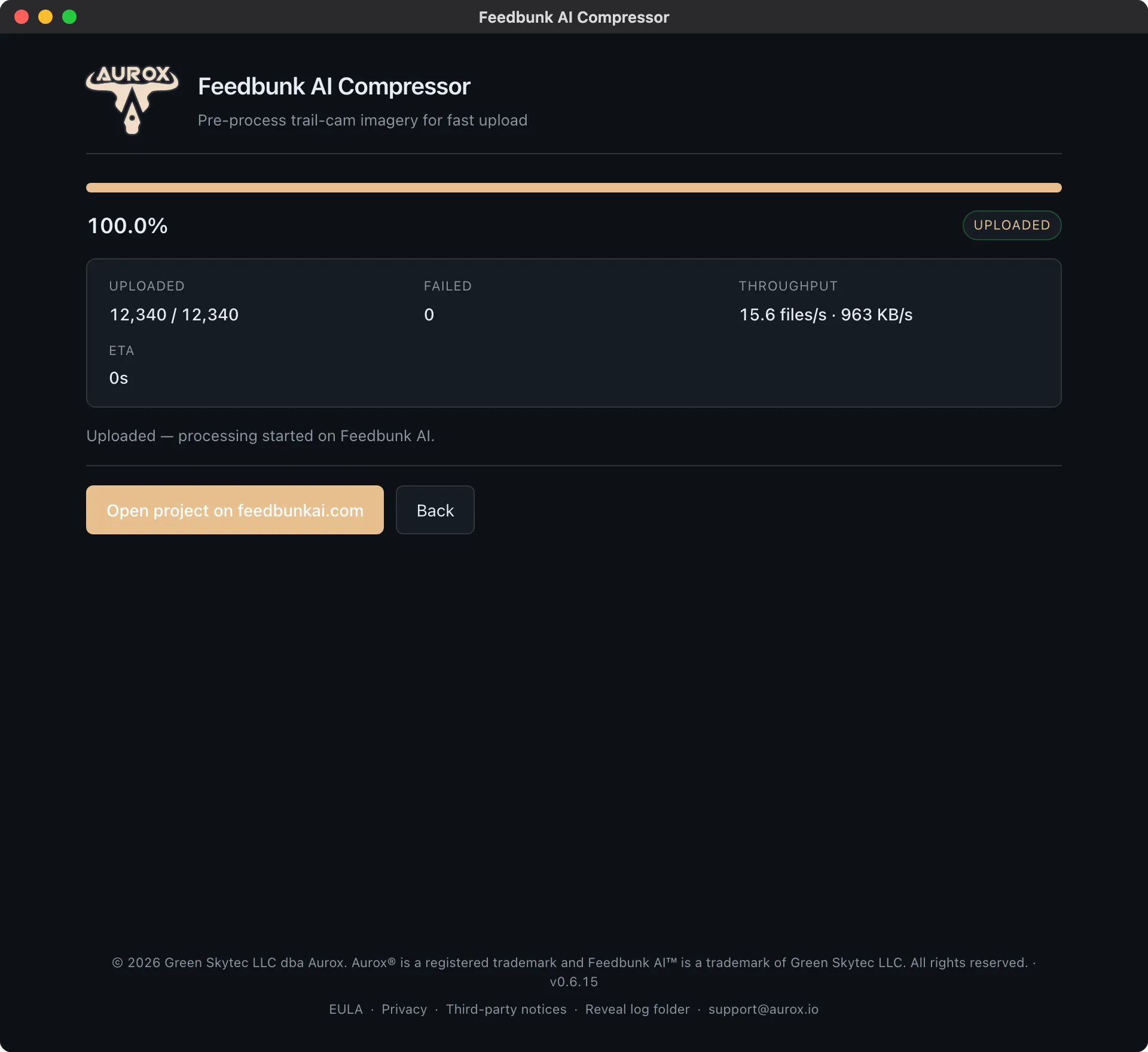
Sometimes you will instead see that the upload finished but we are still verifying the batch. That is normal for very large uploads — check the project page in a few minutes.
From here it is out of your hands. We email you when the report is ready.